
Dealing Desk’s Rule Editor (or “Configurator”) is an external application to edit the dealing rules. Rule Editor gives all four versions of the app the same editing workflow. When setting up the rules with the Rule Editor, rules are loaded from it on the go by pressing the Save button, no MetaTrader server restart or Dealer re-login required.
Dealing Desk authentication
Plugin versions of Dealing Desk require users to specify their login credentials and server address (including its port ) upon launching the Rule Editor. The application can remember the latest login data and store it locally in the encrypted format.

Rule Editor supports both Administrator and Manager connections. Managers can edit the rules if they are authorized by their Administrator to do so.
ℹ️
NOTE: By MetaQuotes’ design, Administrators of the subordinate MT5 Trading server can only view the plugin’s configuration and can't edit it. However, they can edit plugin configurations if they are allowed to connect to the server with MetaTrader Manager. Dealing Desk’s Rule Editor follows this logic and allows the subordinate Admins to edit the rules of their plugin instances as if they were managers.
Manager API MT4 and MT5 versions of Dealing Desk do not show the login windows upon launching the configurator. Their login credentials are specified directly in the app.json.
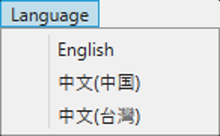

UI’s language can be changed by clicking on the Language button. English, Chinese Simplified and Chinese Traditional are supported in the latest version. Switching language is available in the Rules window as well.
Rules window
After logging in, the main window with the Rule list will appear. The status bar at the bottom of the window displays possible errors during connection. When connected, it will display the “Configuration has been loaded successfully” message.

There can be several instances of the plugin installed on the server, the drop-down menu will offer to choose the needed instance. In case of MT5 plugin and the instances on both Main and subordinate Trade servers, Rule Editor will show the options depending on who has logged into the application. If it was the Main Trade server’s admin, all the instances of the cluster would be available to edit. If it was a manager of a server, only one instance would be available.

The main window is empty upon the first start of the application. To begin with editing, double-click on the blank cell of the Name column and give the first rule a name. Then, Enable it, or Disable, if you want to switch its Activity on later.
To add more rules, click on blank cells below the existing rules, an extra blank row will appear for a new rule. Rules can be moved up and down the list with a right-click menu. You can also delete and duplicate rules from this menu.

If you deleted all the rules or there is no blank field to input a new rule, double-click on Action or Filter of a rule and press Cancel, and a blank rule field will appear.

Once you are finished with editing the rules, press Save to apply the changes. Press Reload to load the currently active set of rules into the Editor.
Action window
To edit Actions, double-click on a blank cell of Action column. Action types, Delays, Slippages and Instant actions of a rule can be edited in this window. Press Save to finish with editing, press Cancel to discard the changes.


Filter window
To edit Filters, double-click on a blank cell of the Filter column. Rule’s active time, Request types, Directions, Filter groups and Conditions can be edited in this window.


To add a Filter group, double-click on a blank cell of the Name column, and then proceed with editing Conditions. A new Conditions window will appear where you can add filtering types and math conditions for them:

Filter types’ input is similar to MT5 routing rules: Type, Condition, Value. Conditions are the math comparison operations:

=Equals!=(≠) Not Equal<Less Than<=(≤) Less Than or Equal>More Than>=(≥) More Than or Equal
Please note that the types may accept only certain conditions. Press Save to finish with editing, press Cancel to discard changes.